PowerPoint presentations are more than just slides. Notes allow presenters to include important details that the audience does not see. Knowing how to add notes to PowerPoint improves clarity, organization, and presentation delivery. This guide walks you through every step to make your slides professional and impactful.
Table of Contents
Why Adding Notes in PowerPoint Matters
Adding notes in PowerPoint ensures you never forget key points. Notes act as personal reminders while speaking, helping maintain flow. They allow you to expand on slide content without cluttering slides with text. Using notes effectively improves audience engagement and enhances your confidence as a presenter.
How to Access the Notes Section
To begin adding notes, open your PowerPoint file. At the bottom of the slide window, click on the Notes pane. If the pane is hidden, select View and then Notes Page. This section provides a dedicated space to type additional details for each slide, helping you organize your talking points seamlessly.
Step-by-Step Guide to Add Notes
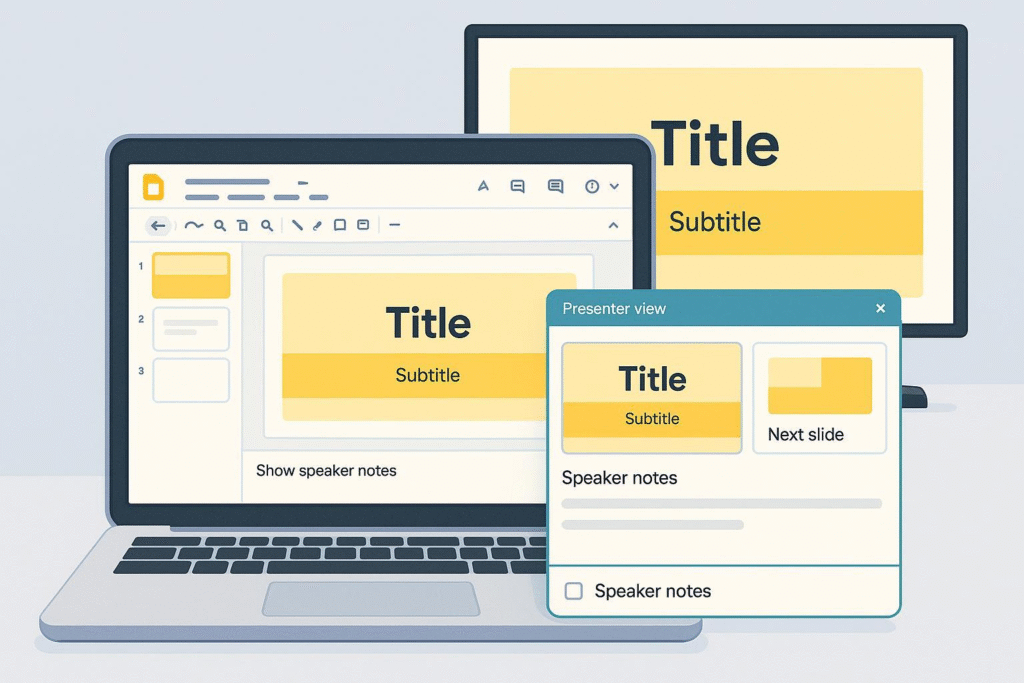
First, select the slide where you want to add notes. Click the Notes area below the slide. Type your content carefully, keeping it concise and relevant. Use bullet points for clarity. Repeat for every slide that requires additional information. This method ensures a smooth flow during the presentation.
Formatting Notes for Clarity
Proper formatting makes notes easier to read. Use short sentences, bold key terms, and separate ideas with line breaks. Adding numbered or bulleted lists highlights important points. Color coding or italicizing critical items can also help emphasize key information while presenting.
Using Notes During Presentations
During a presentation, notes serve as your guide. Switch to Presenter View to see your notes privately while the audience sees only slides. This allows smooth transitions, effective timing, and better engagement. Practicing with notes ensures you deliver a confident and professional presentation every time.
Exporting Notes for Reference
PowerPoint allows exporting notes for review or sharing. Go to File → Print → Notes Pages to print slides along with notes. This helps in distributing presentation details to colleagues or keeping personal reminders. Exporting notes ensures you retain important content for later use.
Tips for Effective Notes
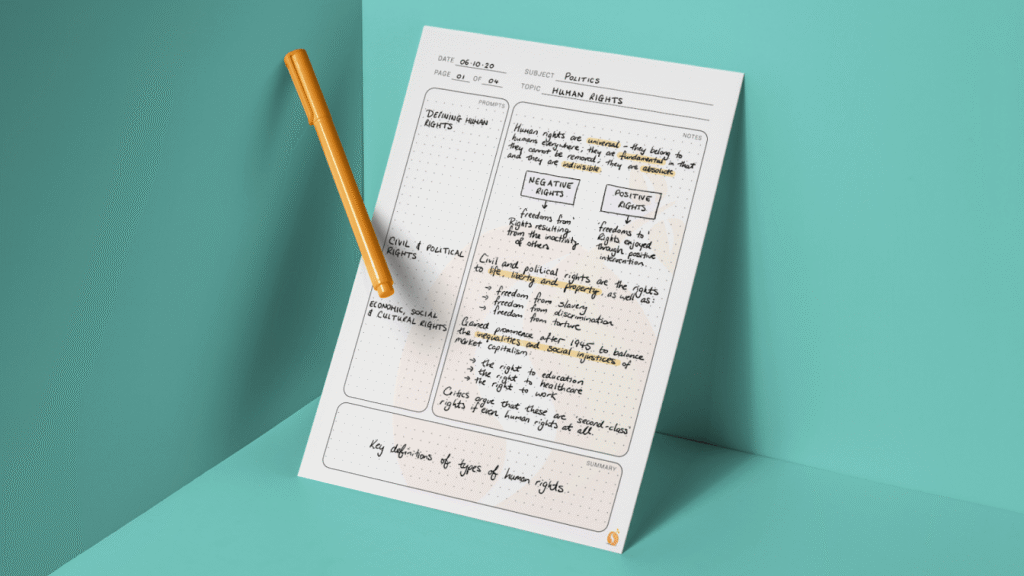
Keep your notes simple, clear, and focused on essential points. Avoid writing full sentences; use keywords and short phrases. Practice speaking using your notes to make delivery natural. Incorporating visuals or references in notes can also improve retention and presentation quality.
Common Mistakes to Avoid
Overloading slides with notes can distract you from engaging the audience. Avoid cluttering the notes section with unnecessary information. Ensure your notes are concise and aligned with your main talking points. Poorly organized notes can reduce confidence and disrupt the flow of your presentation.
Conclusion
Learning how to add notes to PowerPoint enhances presentation effectiveness, confidence, and clarity. With proper usage, notes act as a powerful tool to convey information smoothly. Start adding notes today and make your presentations more impactful. Practice, format, and organize notes for the best results.
FAQs
1. Can I add notes to PowerPoint on mobile devices?
Yes, PowerPoint mobile apps support adding notes. Tap the slide and select Notes to type your details.
2. Can notes be printed separately from slides?
Absolutely. Use the Print → Notes Pages option to print slides with notes included.
3. Are notes visible to the audience during presentations?
No, notes remain private when using Presenter View. Only the presenter can see them.
4. Can I format notes with colors and fonts?
Yes, PowerPoint allows text formatting in the notes section for better clarity and emphasis.
5. How many notes can I add to a single slide?
There is no strict limit. However, keep notes concise to ensure readability and efficient presentation delivery.